Data Collection using Dataset Node in Graph UX
You can collect real-time audio data from sensors or bring in your own audio data using the dataset node in Graph UX.
Plan the data collection
Before you start collecting data, plan what data you need and which device you want to use to collect data.
-
Identify the type of data you need: Start from the business problem you want to solve and work out what kind of data your model needs, such as audio, motion or radar data. To get started quickly, use one of our Studio Accelerators. For more information, refer to How do I get started with Studio Accelerators?.
-
Select the device for data collection: Choose the device to collect the data. You can collect data with an Infineon board or with your laptop’s built-in sensors.
-
Supported Infineon boards: DEEPCRAFT™ Studio supports a range of Infineon development kits, and each kit has a different set of sensors. For the list of supported boards and their sensors, refer to Infineon Development Kits. Before you can stream data from a board to Studio, flash the board with the streaming firmware. We provide streaming firmware customized for each supported board. To learn how to flash the firmware, refer to Infineon Development Kits and select your board.
-
Other Infineon boards: To collect data with an Infineon board that is not on the supported list, build and customize your own streaming firmware using Tensor Streaming Protocol version 2. For more information, refer to Registering sensors using Protocol version 2 and Other Infineon boards.
-
Laptop built-in sensors: Collect data with your laptop’s built-in sensors, such as the microphone and camera.
-
How to collect data using Dataset?
-
Navigate to File > New Project > Templates > Generic, select Empty Project and click OK. DEEPCRAFT™ Studio downloads the project to your workspace and opens an empty canvas (main.imunit). Refer to Getting Started for detailed steps.
-
Double-click the canvas, or right-click the canvas and select Search for Node to open the search box. You can also press Ctrl+T when the .imunit window is active. Type Dataset in the search box, then double-click the matching result or drag and drop the node onto the canvas.
-
Decide how you want to add data to the Dataset node. You can import existing data from your PC or from an existing Studio project, collect real-time data from a sensor, or do both in the same Dataset node. If you want to do both, import the data first and then collect the real-time data.
- Import data: Refer to Importing Data for more information.
- Collect real-time data: Refer to Collecting Real-Time Data for more information.
-
Add a sensor node to the canvas, depending on the device you want to collect data with:
- Infineon board: Connect the board to your PC. The board name and all configured sensors appear under the Boards directory in the Node Explorer. Expand the board name and drag and drop the required sensor onto the canvas.
- Laptop built-in sensors: Double-click the canvas, or right-click the canvas and select Search for Node. You can also press Ctrl+T. Type Local Microphone or Local Camera in the search box, then double-click the matching result or drag and drop the node onto the canvas.
The Boards directory appears only when you flash the board with the new streaming firmware (Protocol version 2) and enable the Use Node Explorer with Protocol Version 2 option under Tools > Options > General.
Collecting audio data using Local Microphone
The following steps show how to collect audio data with the Local Microphone node. You can follow the same steps to collect data from other sensors.
-
Hold the output port of the Local Microphone node and drag the wire to the input port of the Dataset node. This connects the two nodes and automatically adds a Local Microphone track to the Dataset node. The track holds the audio data that the Local Microphone captures.
-
Double-click the Dataset node to open the Dataset window. The window contains two tabs:
- Sessions: Lists all the sessions you record or import. Use this tab to start a new recording.
- Tracks: Lists the tracks in the dataset. Tracks define how session data appears in the timeline view. When you connect a sensor node to the Dataset node, Studio creates a track for that sensor automatically.
-
In the Sessions tab, click + Add Session. The timeline view opens.
-
Click Record in the toolbar to start capturing the real-time data.
-
Click Record again to stop recording. The recording is saved automatically as a session and appears in the Sessions tab.
-
Repeat steps 3 to 5 to record more sessions.
Bring your own Data into Dataset
You can bring your own data into the dataset node. Before importing data, consider the following:
-
Consistent shape and recording frequency: All the data you import must have the same shape and recording frequency. For example, if you import audio data, all files must be either stereo or mono. Mixing stereo and mono files results in errors.
-
Importing into an existing dataset: We recommend importing data into an empty dataset with no tracks defined, so the import goes smoothly. If you have already recorded data into the Dataset node and want to import additional data into the same dataset, make sure that:
- The track names in the imported data match the track names in the Dataset node.
- If the imported data contains labels, the class names match the class names in the label track of the Dataset node.
-
Importing data with mixed shapes or recording frequencies: If your data contains tracks with different shapes or recording frequencies, you can still import it into the Dataset node. The import window detects these differences and create groups of data with similar shapes and recording frequencies automatically and lets you import the data with the majority group which data to import.
You can import data into the Dataset node in two ways. To get started quickly, import data from a Studio Accelerator, which gives you ready-made data for a sample use case.
Import data into a Dataset node
-
Double-click the Dataset node and click the Import button. The Import data window opens.
-
Click Select file to import a single file, or Select folder to import a whole folder of files. You can also drag and drop files or folders into the Import data window. The selected file or folder names appear in the window.
-
Click Import. The import process starts.
-
If the selected files have different recording frequencies or data shapes, a similar dialog box appears.
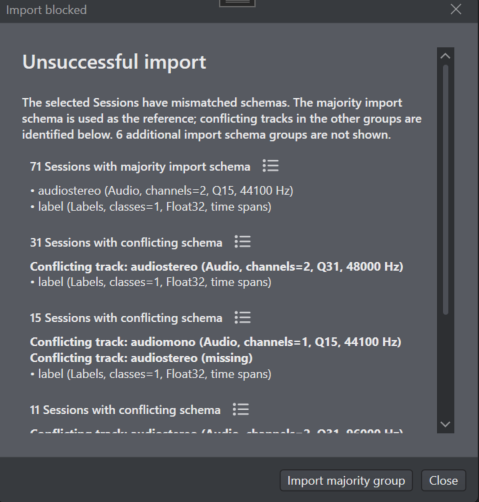
The dialog box groups the files by recording frequency and shape. To see which files belong to a group, click the icon next to that group.
-
Click Import Majority Group to import only the files in the largest group.
-
After the import, sessions are created for each imported file, and tracks are created automatically from the imported data. You can then start labeling or recording sessions. For more information, see Recording sessions.
After you have collected the data, you can label the data. For more information, refer to Data Labeling.
Data management in the Dataset node
The Sessions tab in the Dataset node lists all the sessions that you recorded or imported into the Dataset.
Search sessions
You can search sessions by name or filter them by metadata, such as session length or the percentage of the session that is labeled.
Search by session name: Enter the session name in the search box. The session list updates to show matching sessions.
Filter by metadata
- Click Add filter.
- Select one of the following filters:
- Length: Select At least or At most, then enter the session duration.
- Labeled percentage: Select At least or At most, then enter the percentage of the session that is labeled.
- Click Add. The session list shows only the sessions that match the filter.
Session details
The session list shows the following information for each session:
| Column | Description |
|---|---|
| State | Shows how the session was added to the dataset. Imported sessions show Imported, and recorded sessions show Recorded. |
| Length | Shows the duration of the session. |
| Labeled percentage | Shows the percentage of the session that is labeled. |
Session actions
You can perform the following actions on a session:
| Action | Description |
|---|---|
| Open a session | Click the Open icon next to the session, or double-click the session, to open the session in the timeline view. |
| Export a session | Click the Download icon next to the session to export the session along with all the tracks in the session. In the export window, select the export format, choose where to save the files, and configure any advanced export settings as needed. |
| Delete a session | Click the Delete icon next to the session to remove the session from the dataset. |