Getting started with Ready Models
Download a Ready Model from DEEPCRAFT™ Studio as a project. The project includes the dataset, preprocessor, trained model, and Graph UX assets you need to evaluate or customize the model.
If you have not installed DEEPCRAFT™ Studio, refer to Installing DEEPCRAFT™ Studio for instructions.
How do I download a Ready Model?
-
Open DEEPCRAFT™ Studio.
-
Click New Project in the welcome screen. The welcome screen appears when you open Studio for the first time.
OR
Go to File and select New Project. The New Project window appears. -
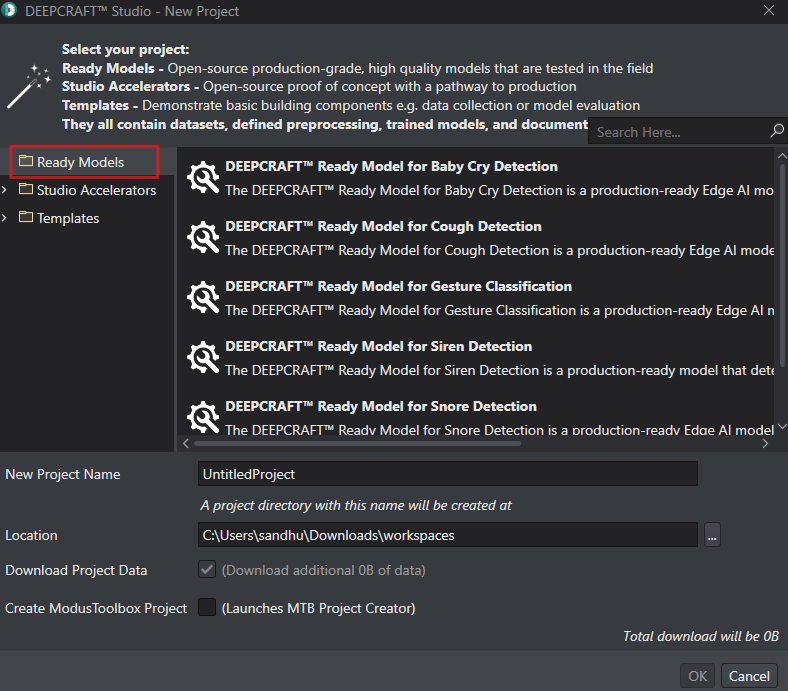
Click Ready Models and select the model that matches the machine learning problem you want to solve.
-
In New Project Name, edit the project name, if needed. By default, the default project name is displayed.
-
In Location, specify the location where you want to create the workspace and the project directory.
We do not recommend creating the workspace in directories that are synced with OneDrive, because of this known issue in OneDrive.
-
Select the Download project data checkbox to download the project data to the workspace selected earlier.
-
Click OK to download the data and create the project.
What is included in the project?
Each Ready Model project includes the following files:
- README.md: Overview of the Ready Model and operational instructions.
- LICENSE.txt: License agreement terms accepted when you download the project.
- Dataset: Recordings organized into
train,validation, andtestsplits. Within each split, recordings are grouped by class and data source as applicable, with one folder per recording. - Model: The Ready Model
.h5file, the TensorFlow Lite.tflitefile used for Graph UX code generation, and, when provided,calibrationData.npzfor quantization. - *.improj: DEEPCRAFT™ Studio project file for the Ready Model.
- CodeGenGraphUX/Main.imunit: Graph UX project file for code generation.
What’s next?
After you create the project, you can either evaluate the shipped model by generating code and deploying the model to the Infineon AI Board, or customize the model by collecting additional data and retraining the model in Studio using the standard machine learning workflow. See Customize a Ready Model in Studio for the workflow and the code generation steps and Code generation for Ready Models to know more about the code generation process.